Step-by-step guide
Connect your WhatsApp number
About 10 minutes, from a computer. You connect through Meta, the company behind WhatsApp, and sign in on Meta's own page.
Before you start
- A computer, or Chrome on an Android phone. On an iPhone or iPad the connection cannot finish yet: open the same page on a computer.
- A number your business owns that can receive a text message or a call, for Meta's code. A landline works by call, if it has no menu and no call forwarding.
- The number must not be in the WhatsApp or WhatsApp Business app. If it is, delete that WhatsApp account in the app first, then wait about 15 minutes. Chats in the app do not move across.
- A Facebook account, and your business's real name and its own website. Meta checks them, and can switch off a number whose details do not match.
- If your business already has a WhatsApp account at Meta with several numbers, tell us which one you want before you start.
The steps
Open Channels and press Connect with Meta
In your dashboard, open Channels in the menu. Read the three points on the Connect WhatsApp card, then press Connect with Meta.
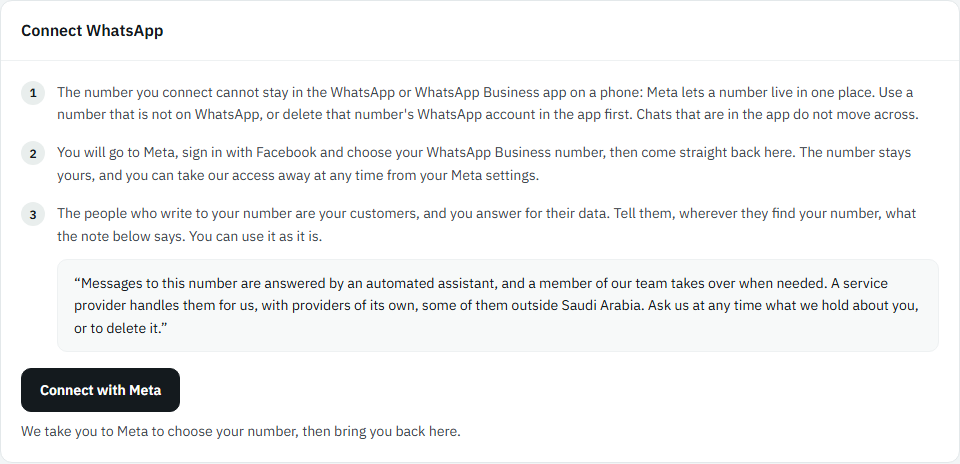
Picture: The Connect WhatsApp card, with its three points and the Connect with Meta button Read the notice, then continue
The notice says what Meta checks: that the number is yours, and that the business name and website match your documents. Press I understand, continue. If you signed in more than 10 minutes ago, type your password again.
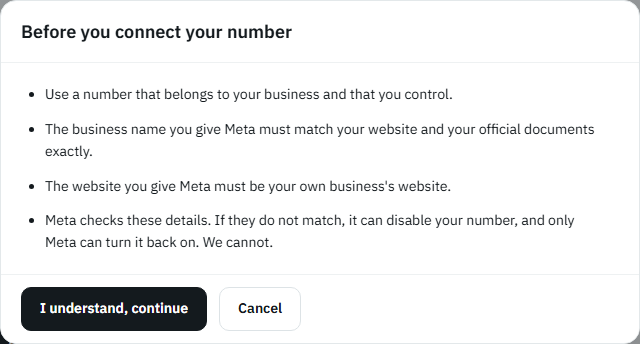
Picture: The notice Before you connect your number, with the I understand, continue button Sign in to Facebook
The page moves to Meta. Sign in with the Facebook account that manages your business. If you are already signed in, Meta skips this or asks you to continue as yourself. Meta changes the order of its screens now and then, so yours may differ a little, but the same questions come up.
Meta's first screen: press Get started
It is headed Onboard to the WhatsApp Business Platform with Jazerahalibdaa, our name at Meta, and lists three steps: create or select your WhatsApp Business account, add a phone number and profile details, and start messaging your customers. If you have more than one business, choose yours at the top under Business portfolio. Then press Get started.
Choose or create your business and its WhatsApp account
Choose your business portfolio, or create one with your business's real name and its own website. Then choose your WhatsApp Business account, or create one. Meta checks these details against your documents.
Add your profile and your number
Type the name customers will see on WhatsApp, your business's name as customers know it, and choose its category. Then add your number, choose whether Meta sends the code by text message or by phone call, and type the code.
Review and confirm
Meta lists what the platform may do with your WhatsApp account: send and receive messages for your business. Review it and confirm.
Back here: connected
Meta sends you back to your dashboard, which says Connected, with your number and its name on WhatsApp. When it says The number is ready, your assistant answers everyone who writes to that number.
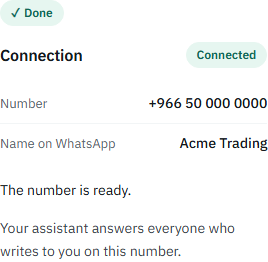
Picture: The connection card saying Connected, with the number and its name on WhatsApp
If something goes wrong
- Meta says the number is already on WhatsApp: delete that account in the WhatsApp app, wait about 15 minutes, and try again.
- Connected, but the number is not ready: press Register the number again on the same card.
- On an iPhone or iPad there is no Connect button: open the same page on a computer, or in Chrome on Android.
- Meta stops with an error, or says the app is not available to you: message us on WhatsApp, and we'll finish it with you.
- To disconnect, press Disconnect on the card. You can also remove the platform from the connected apps in your Meta business settings.
Stuck on a step? Message us on WhatsApp, and we'll finish connecting it with you.