Step-by-step guide
Connect your Instagram account
About 5 minutes. You sign in on Instagram's own page. Your assistant then answers your Instagram direct messages.
Before you start
- An Instagram professional account (business or creator). To switch: open your profile, the menu, Account type and tools, then Switch to professional account. A private account becomes public.
- The username and password of that account. No Facebook Page is needed.
- Your business's real name and its own website on the account. Meta checks them.
The steps
Open Channels and press Connect Instagram
In your dashboard, open Channels in the menu. Instagram has its own card. Press Connect Instagram.
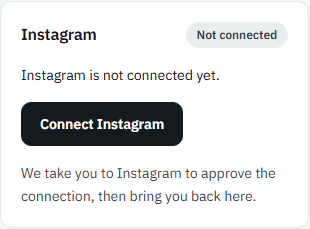
Picture: The Instagram card, Not connected, with the Connect Instagram button Read the notice, then continue
The notice says what Meta checks on your account. Press I understand, continue.
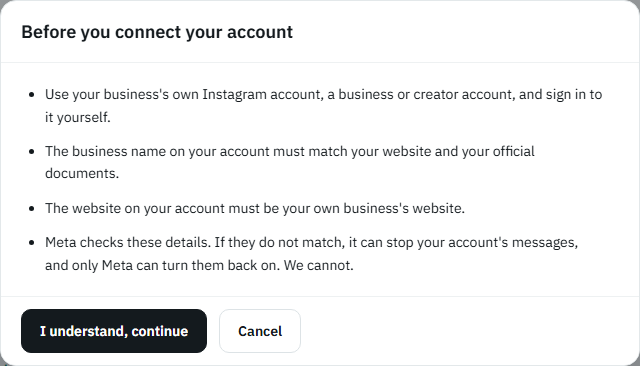
Picture: The notice Before you connect your account, with the I understand, continue button Sign in to Instagram
The page moves to Instagram. Type your username and password, even if you are already signed in there, and press Log in. If Instagram sends you a security code, type it.
Allow access
Instagram shows what the platform asks for, and only this: your account's basic details, such as its name, and your direct messages, to read and answer them. Press Allow. Cancel brings you back with nothing connected.
Back here: connected
The page says Instagram is connected. Press Return to Channels: the card says Connected, with your account's name, and your assistant answers the direct messages you receive.
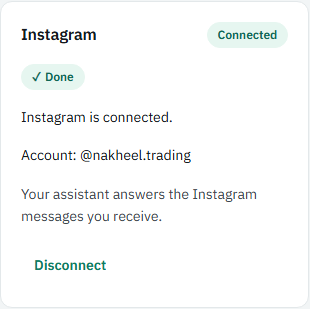
Picture: The Instagram card saying Connected, with the account's name and the Disconnect button
If something goes wrong
- Messages arrive but nothing is answered, and the dashboard asks you to take control: your Instagram is linked to a Facebook Page where another app answers messages. In Meta Business Suite open Settings, then Conversation routing (or the Page's Advanced messaging), and give control of conversations to Wasl - IG.
- No messages arrive at all: in the Instagram app open Settings, Messages and story replies, Message controls, Connected tools, and turn on Allow access to messages.
- Instagram stops with an error, or says the app is not available to you: message us on WhatsApp, and we'll finish it with you.
- To disconnect, press Disconnect on the Instagram card.
Stuck on a step? Message us on WhatsApp, and we'll finish connecting it with you.